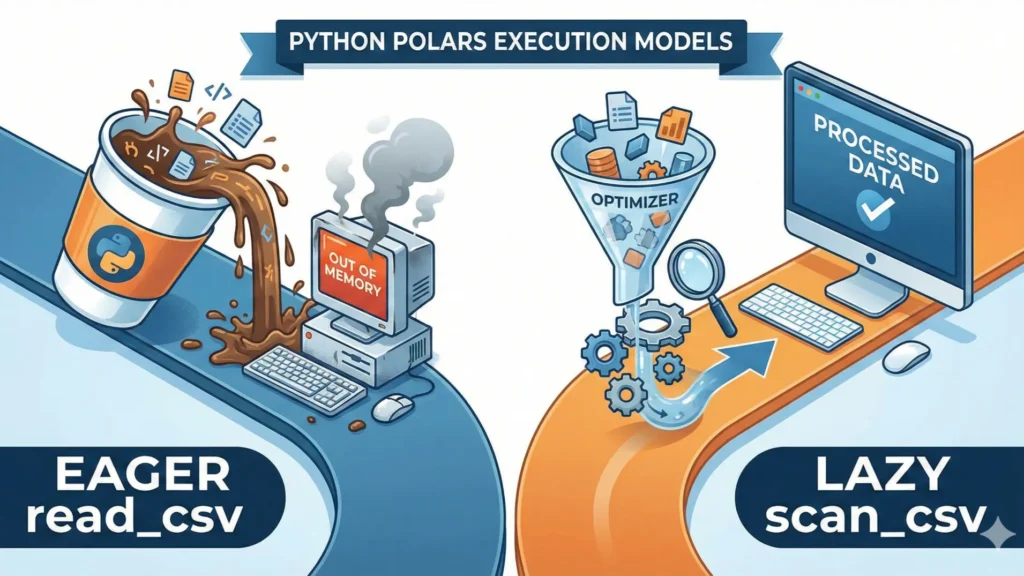
🚀 Quick Overview
- The Problem: Using
time.sleep(3600)freezes your script and crashes easily. - The Fix: Letting your Operating System (OS) trigger your script automatically.
- The Tools: Windows Task Scheduler & Linux/Mac Cron Jobs.
- The Freelance Angle: Clients want scripts that run daily without human intervention.
In this guide, you will learn how to schedule your Python scripts to run automatically every day, week, or hour using professional automation tools.
Let’s talk about the biggest amateur mistake in Python automation. When you built your Price Tracker Bot last week, we used time.sleep(3600) to make the script wait an hour before checking prices again.
For a quick test, that is fine. But in the real world? It’s a disaster. If your computer goes to sleep, your Wi-Fi drops for one second, or Python hits a random error, the loop breaks. Your script crashes, and you wake up to zero data.
Professional freelancers don’t use time.sleep(). They build the script to run once, and then they tell the computer’s Operating System to pull the trigger automatically at 8:00 AM every morning. Today, you are going to learn exactly how to do that.
Why the OS Scheduler is Better
When you use an infinite while True: loop, your Python script sits in your computer’s RAM 24/7, eating up memory just waiting for the clock to tick.
With an OS Scheduler, your script runs, does its job (like filling a web form or sending a Telegram message), and then completely shuts down. Zero wasted memory.
Method 1: Windows Task Scheduler (No Code Required)
If you are on Windows, you already have a powerful automation tool built-in.
- Click the Windows Start menu, type Task Scheduler, and hit Enter.
- On the right panel, click Create Basic Task….
- Name it: “LogicPy Daily Bot” and click Next.
- Trigger: Choose Daily and set the time (e.g., 8:00 AM).
- Action: Choose Start a program.
The Tricky Part (Pay Attention Here!)
In the “Start a Program” window, beginners often just put their script.py file. This will fail. You must tell Windows to open Python, and tell Python to run your script.
- Program/script: Enter the path to your Python executable (e.g.,
C:\Python310\python.exe). - Add arguments: Enter the name of your script (e.g.,
my_bot.py). - Start in: Enter the folder where your script lives (e.g.,
C:\Users\Larry\Desktop\BotFolder).
Click Finish. Your script will now run invisibly every morning at 8:00 AM!
Method 2: Mac & Linux (The Mighty “Cron”)
If you are using a Mac, Linux, or a Cloud Server like Render, you will use a tool called Cron.
Open your Terminal and type:
crontab -eThis opens your scheduling file. Cron uses a specific syntax: Minute Hour Day Month DayOfWeek Command.
To run your script every day at 8:30 AM, you would add this line to the bottom of the file:
30 8 * * * /usr/bin/python3 /Users/Larry/Desktop/my_bot.pyMethod 3: The Python schedule Library (The Middle Ground)
What if you want your script to stay open (like a live dashboard), but you want better readable code than time.sleep()? Use the Python schedule library.
pip install scheduleimport schedule
import time
def job():
print("Scraping prices... Saving to Database...")
# Human-readable scheduling!
schedule.every().day.at("08:00").do(job)
schedule.every().monday.do(job)
schedule.every(10).minutes.do(job)
print("Bot is waiting for its scheduled time...")
while True:
schedule.run_pending()
time.sleep(1) # Only sleeps for 1 second to check the clock, not 3600!Conclusion
You now know how to build a bot, scrape data, save it to a database, and schedule it to run automatically while you sleep. You have officially transitioned from writing “hobby scripts” to engineering professional automation pipelines.
Now, go out there and pitch your first freelance project!