
🚀 Quick Overview
- The Goal: Create a bot that types data into a website.
- The Tool: Selenium (The standard for Browser Automation).
- The Freelance Angle: Companies pay $50-$100 to automate repetitive data transfer.
- Time: 20 Minutes.
In this tutorial, you will learn how to automate boring data entry tasks by building a Python script that controls your web browser.
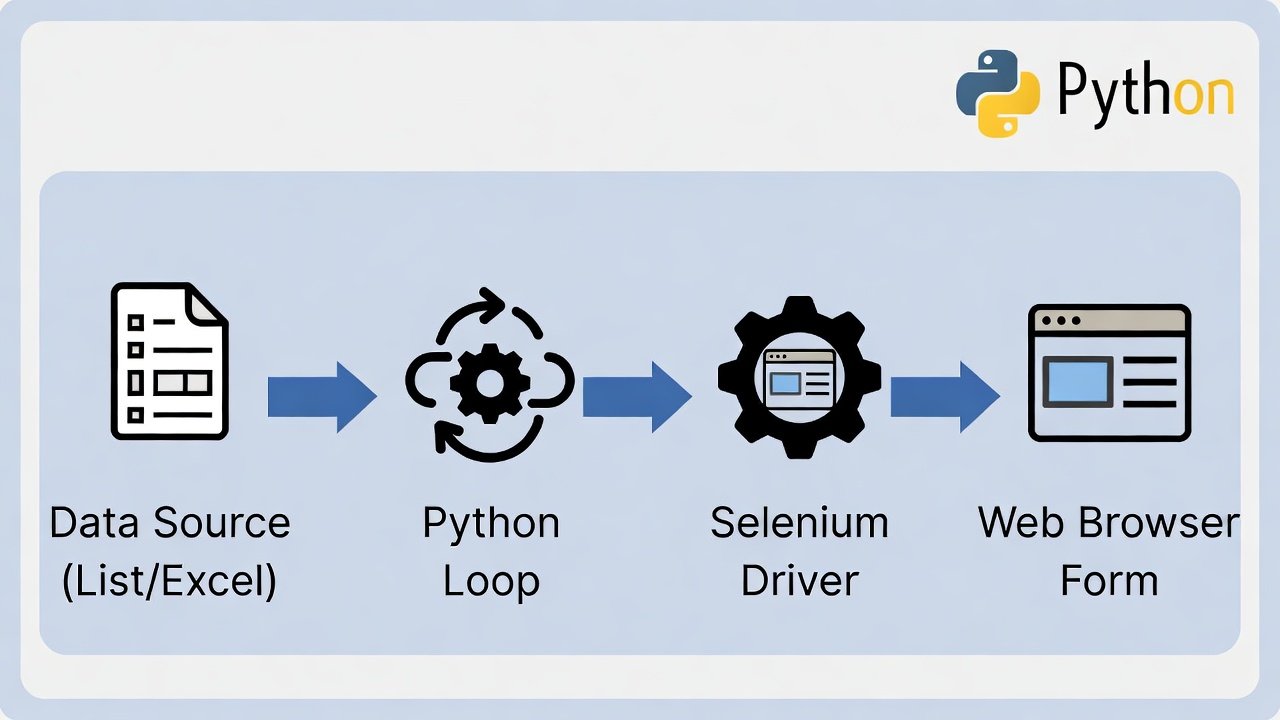
We have all had that client or boss who hands us an Excel sheet and says, “Please copy these 500 names into our CRM website.” It is mind-numbing work. It is slow, boring, and easy to make mistakes.
As a Python developer, you should never do this manually. Instead, you can use Selenium to build a “Robot” that opens Chrome, navigates to the website, types the data, and clicks submit—faster than any human ever could.
Step 1: The Setup
We need Selenium to control the browser and Webdriver Manager to handle the technical connection to Chrome.
pip install selenium webdriver-managerStep 2: Create a Practice Form
To make sure this tutorial works forever (and doesn’t break if a website changes), we will use a simple local HTML form. Create a file named form.html on your desktop and paste this code:
<!-- Save this as form.html -->
<html>
<body>
    <h1>LogicPy Data Entry Practice</h1>
    <form>
        <label>Full Name:</label><br>
        <input type="text" id="fullname"><br><br>

        <label>Email Address:</label><br>
        <input type="text" id="email"><br><br>

        <button type="button" onclick="alert('Data Submitted!')">Submit</button>
    </form>
</body>
</html>
Double-click form.html to open it in your browser. It’s ugly, but it works for practice!
Step 3: The Automation Code
Now, let’s write the Python bot. Create a file named form_filler.py. We will simulate having a list of users to register.
from selenium import webdriver
from selenium.webdriver.common.by import By
from selenium.webdriver.chrome.service import Service
from webdriver_manager.chrome import ChromeDriverManager
import time
import os

# 1. Mock Data (In real life, this comes from your Excel Automation script)
users = [
    {"name": "Alice Smith", "email": "alice@example.com"},
    {"name": "Bob Jones", "email": "bob@example.com"},
    {"name": "Charlie Day", "email": "charlie@example.com"}
]

# 2. Setup the Browser (The "Robot")
driver = webdriver.Chrome(service=Service(ChromeDriverManager().install()))

# 3. Open our local form file
# (We use os.getcwd() to find the file on your computer)
file_path = os.path.join(os.getcwd(), 'form.html')
driver.get(f"file:///{file_path}")

print("Browser Open! Starting data entry...")

# 4. Loop through the data
for person in users:
    # A. Find the input boxes using their HTML 'id'
    name_box = driver.find_element(By.ID, "fullname")
    email_box = driver.find_element(By.ID, "email")
    submit_btn = driver.find_element(By.TAG_NAME, "button")

    # B. Type the data
    name_box.clear() # Good practice to clear field first
    name_box.send_keys(person['name'])

    email_box.clear()
    email_box.send_keys(person['email'])

    # C. Click Submit
    submit_btn.click()

    print(f"Submitted: {person['name']}")

    # Wait a bit so you can see it happening (remove this in production for speed)
    time.sleep(2)

    # Handle the "Alert" popup
    alert = driver.switch_to.alert
    alert.accept()

print("All done! Closing browser.")
driver.quit()
Step 4: Finding “IDs” on Real Websites
How do you know that the box is named fullname? You use the Inspector.
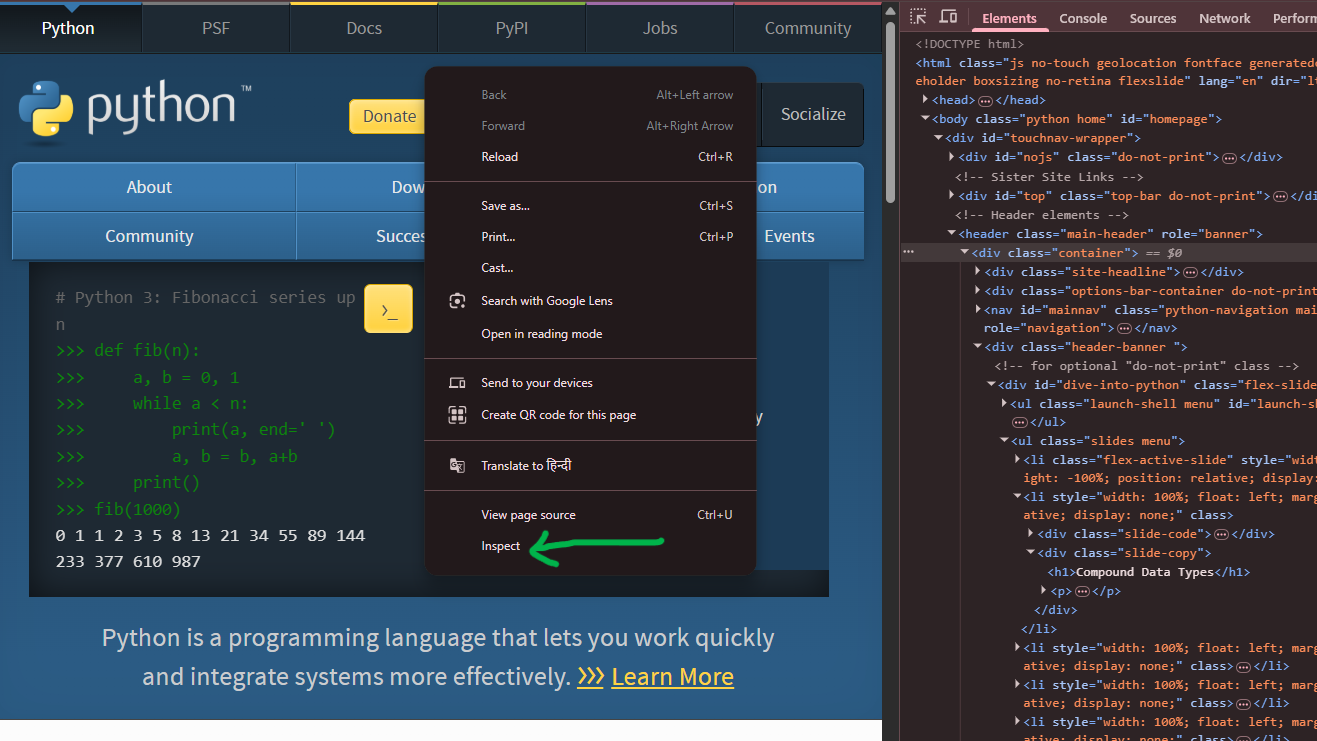
- Right-click on any input box on a website.
- Select Inspect.
- Look for the code that looks like
id="something"orname="something". - Use
By.IDorBy.NAMEin your Python code to target it.
How to Sell This Service
This skill connects perfectly with your other tutorials:
- Excel + Selenium: Use your Pandas skills to read an Excel file, then loop through it with Selenium to fill forms.
- OCR + Selenium: Use OCR to read a scanned PDF, then use Selenium to upload the data.
Conclusion
Selenium is powerful. You can use it to scrape data, test websites, or automate your morning login routine. It is the ultimate “Lazy Developer” tool.