
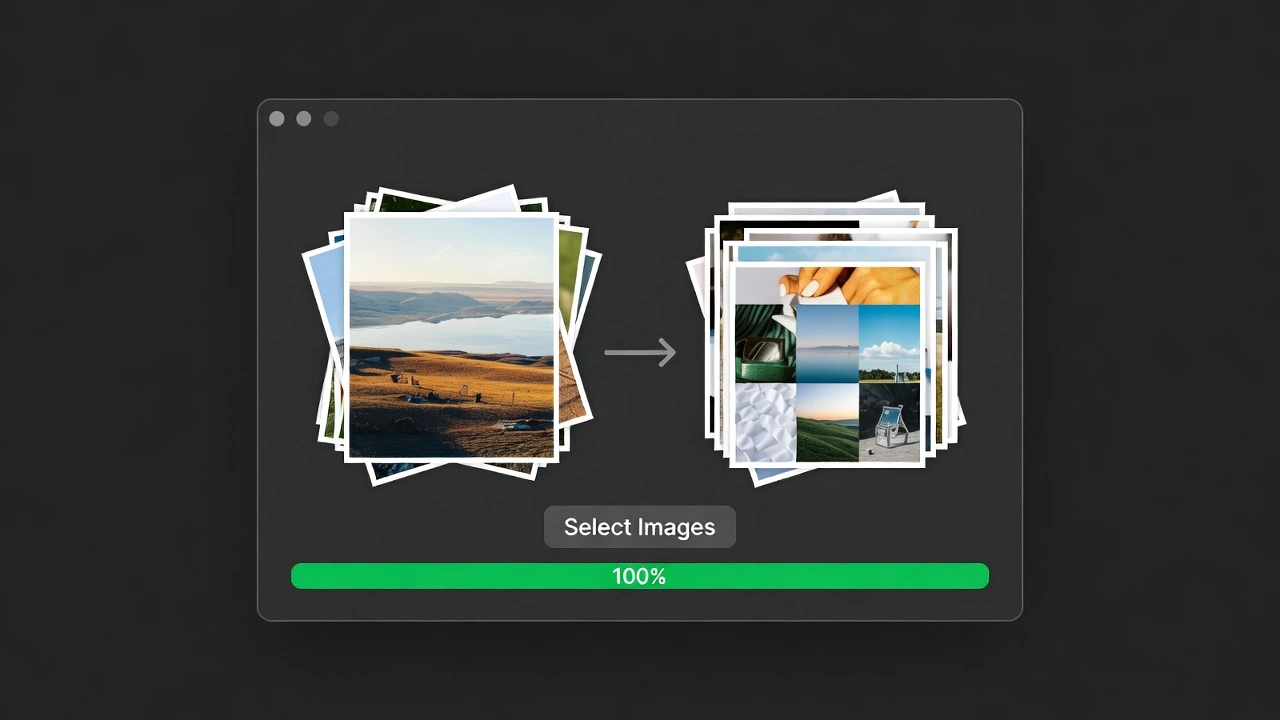
⚡ What You Will Build
- The Problem: You have 50 high-res photos that are too big to email. Resizing them manually takes forever.
- The Solution: A batch processor app. Select files once, click one button, and done.
- The Tech:
CustomTkinterfor the UI andPillowfor image processing.
We have built a Task Manager and a Unit Converter. Today, we are handling real files.
Processing images is one of the best uses for Python. While a human takes 10 seconds to open, resize, and save a photo, Python can do it in 0.1 seconds. Today, we will wrap that power in a clean, modern interface.
The Toolkit 🧰
We need the Pillow library. It is the most popular image manipulation tool for Python.
pip install customtkinter pillowThe Logic Flow 🧠
Before we code, let’s visualize how the app works:
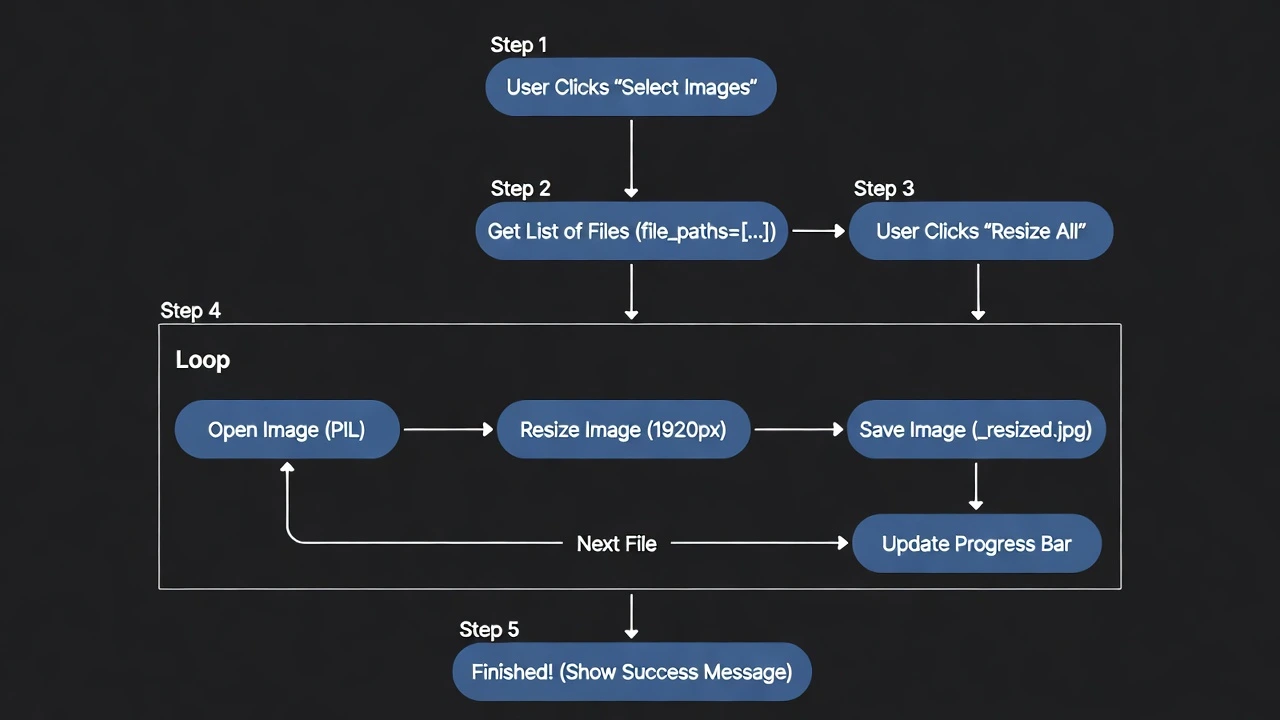
- User clicks “Select Images”.
- App stores the file paths in a list.
- User clicks “Resize All”.
- App loops through the list: Open -> Resize -> Save.
- App updates the Progress Bar after each image.
The Complete Code 💻
Because this app has a few moving parts (files, logic, UI), we will put it all together in one clean script. Create resizer_app.py:
import customtkinter as ctk
from tkinter import filedialog
from PIL import Image
import os

# --- The Logic ---
selected_files = []

def select_files():
    global selected_files
    # Open native file dialog to select images
    files = filedialog.askopenfilenames(filetypes=[("Images", "*.jpg;*.png;*.jpeg")])

    if files:
        selected_files = files
        status_label.configure(text=f"{len(files)} images selected", text_color="white")
        resize_btn.configure(state="normal") # Enable the resize button

def resize_images():
    if not selected_files:
        return

    # Reset progress bar
    progress_bar.set(0)
    total = len(selected_files)

    # Define target size (e.g., HD resolution)
    TARGET_WIDTH = 1920

    for i, file_path in enumerate(selected_files):
        try:
            # 1. Open Image
            img = Image.open(file_path)

            # 2. Calculate new height to keep aspect ratio
            aspect_ratio = img.height / img.width
            new_height = int(TARGET_WIDTH * aspect_ratio)

            # 3. Resize
            img = img.resize((TARGET_WIDTH, new_height), Image.Resampling.LANCZOS)

            # 4. Save (add '_resized' to filename)
            folder, filename = os.path.split(file_path)
            name, ext = os.path.splitext(filename)
            new_filename = f"{name}_resized{ext}"
            save_path = os.path.join(folder, new_filename)

            img.save(save_path)

            # 5. Update Progress
            progress = (i + 1) / total
            progress_bar.set(progress)
            app.update() # Force UI to update immediately

        except Exception as e:
            print(f"Error resizing {file_path}: {e}")

    status_label.configure(text="Success! All images resized. ✅", text_color="#2ecc71")
    selected_files.clear()

# --- Setup Window ---
ctk.set_appearance_mode("Dark")
ctk.set_default_color_theme("blue")

app = ctk.CTk()
app.geometry("500x400")
app.title("Batch Image Resizer 🖼️")

# --- UI Elements ---
title_label = ctk.CTkLabel(app, text="Batch Resizer", font=("Arial", 28, "bold"))
title_label.pack(pady=30)

# Step 1: Select
select_btn = ctk.CTkButton(app, text="1. Select Images", width=200, height=40, command=select_files)
select_btn.pack(pady=10)

status_label = ctk.CTkLabel(app, text="0 images selected", text_color="gray")
status_label.pack(pady=5)

# Step 2: Resize
resize_btn = ctk.CTkButton(app, text="2. Resize All (to 1920px)", width=200, height=40, fg_color="#e74c3c", hover_color="#c0392b", state="disabled", command=resize_images)
resize_btn.pack(pady=20)

# Step 3: Progress
progress_bar = ctk.CTkProgressBar(app, width=300)
progress_bar.set(0) # Start empty
progress_bar.pack(pady=20)

# --- Run ---
app.mainloop()
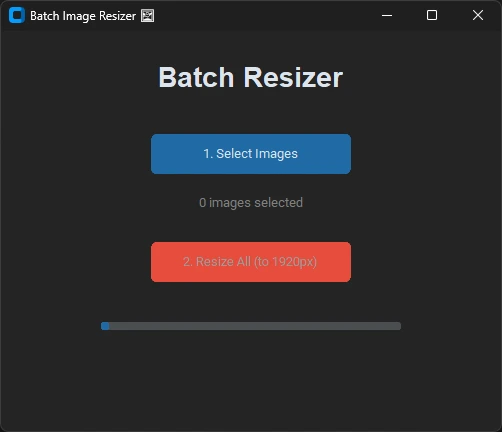
How It Works
filedialog.askopenfilenames: This opens the standard Windows/Mac file picker. You can holdCtrlorShiftto select 50+ images at once.Image.Resampling.LANCZOS: This is a high-quality resampling filter. It ensures your photos stay sharp even when resized.app.update(): This is crucial. Normally, an app freezes while working. This command tells the app to “refresh” the screen inside the loop so the progress bar actually moves!
What’s Next?
You have built a tool that saves real time. You can keep this on your desktop and use it whenever you need to send photos.
But as you build more apps, you will notice some look “professional” and others look “clunky.” Tomorrow, we are going to learn why.
Get ready for: “The 5 Golden Rules of GUI Design for Python Developers.”