
⚡ What You Will Learn
- Event-Driven Programming: How to make code run automatically when a user types.
- StringVar: A special CustomTkinter variable that “watches” input boxes.
- Error Handling: How to stop your app from crashing if someone types “abc” instead of “123”.
How often do you Google “150 lbs to kg” or “50 miles to km”?
Yesterday, we learned how to build a basic layout. Today, we are going to build a dedicated tool for these conversions. But we aren’t going to build a boring app where you have to click “Submit.”
We are going to build a Reactive App. As soon as you type the number “1”, it calculates. You type “5”, it updates. It feels instant and professional.
The Magic Component: StringVar ✨
In standard Python, a variable is just a container. In GUI programming, we need variables that are alive.
We will use ctk.StringVar(). This object has a superpower method called trace_add(). It essentially says: “Hey Python, keep an eye on this variable. If it changes—even by one character—run this function immediately.”
Step 1: The UI Layout 📐
We need a simple design:
- A Dropdown Menu to choose the conversion type (e.g., “Miles to Km”).
- An Input Box for your number.
- A large Result Label to show the answer.
Step 2: The Logic 🧠
We need a function that:
1. Grabs the number you typed.
2. Checks which conversion mode is selected.
3. Does the math.
4. Updates the result label.
The Complete Code
Create a file named converter_app.py and copy this code:
import customtkinter as ctk

# --- The Logic ---
def convert_event(*args):
    # This runs every time you type a key!
    try:
        value = float(entry_var.get()) # Try to convert text to number
        mode = combo.get()             # Get selected mode

        if mode == "Miles to Km":
            result = value * 1.60934
            result_label.configure(text=f"{result:.2f} km")

        elif mode == "Km to Miles":
            result = value / 1.60934
            result_label.configure(text=f"{result:.2f} miles")

        elif mode == "Kg to Lbs":
            result = value * 2.20462
            result_label.configure(text=f"{result:.2f} lbs")

        elif mode == "Lbs to Kg":
            result = value / 2.20462
            result_label.configure(text=f"{result:.2f} kg")

    except ValueError:
        # If user types "abc" or empty string, show nothing or "..."
        result_label.configure(text="...")

# --- Setup Window ---
ctk.set_appearance_mode("Dark")
ctk.set_default_color_theme("green")

app = ctk.CTk()
app.geometry("400x350")
app.title("Unit Converter ⚡")

# --- UI Elements ---
title_label = ctk.CTkLabel(app, text="Live Converter", font=("Arial", 24, "bold"))
title_label.pack(pady=20)

# 1. The Dropdown (Combo Box)
combo = ctk.CTkComboBox(app, values=["Miles to Km", "Km to Miles", "Kg to Lbs", "Lbs to Kg"], width=200, command=convert_event)
combo.pack(pady=10)
combo.set("Miles to Km") # Default option

# 2. The Input (With the Magic Variable)
entry_var = ctk.StringVar()
# Tell Python: "When entry_var changes, run convert_event"
entry_var.trace_add("write", convert_event)

entry = ctk.CTkEntry(app, textvariable=entry_var, width=200, placeholder_text="Type value...")
entry.pack(pady=10)

# 3. The Result
result_label = ctk.CTkLabel(app, text="0.00 km", font=("Arial", 40, "bold"), text_color="#2CC985")
result_label.pack(pady=40)

# --- Run ---
app.mainloop()
Step 3: Test It Out 🚀
Run the script.
- Type 10 in the box. You should instantly see 16.09 km.
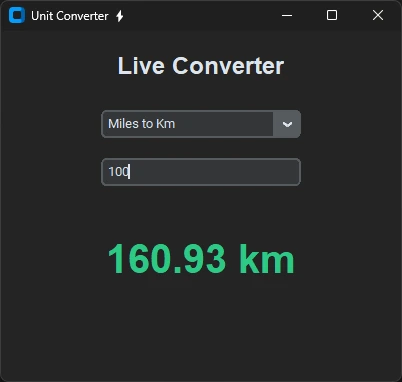
- Backspace and type 100. It updates to 160.93 km without you clicking anything.
- Change the dropdown to Kg to Lbs. The result updates immediately based on the number already in the box.
Why This Matters for Software Design
This is called UX (User Experience). By removing the extra step of clicking “Calculate,” you made your app feel faster and smarter.
When you build tools for real users, these small details are what separate “Python scripts” from “Professional Software.”
What’s Next?
You have mastered layouts and real-time logic.
Tomorrow, we are going to build something that actually manipulates files. We will build a Drag & Drop Image Resizer. You will drag a photo onto your app, and it will automatically resize and save it for you.