

⚡ What You Will Learn
- The Tool: How to use Ollama (the easiest way to run local AI).
- The Model: How to download Meta’s Llama 3 (8 Billion Parameters).
- The Result: You will have a private ChatGPT clone running on your laptop in 5 minutes.
On Monday, we explained Why you should be using a Local LLM (Privacy, Cost, Speed). Today, we stop talking and start building.
By the end of this guide, you will be chatting with one of the world’s smartest AIs, running entirely on your own hardware, with zero internet connection required.
Prerequisites: Can I Run It? 💻
Before we start, let’s do a quick hardware check. For Llama 3 (8B), you need:
- RAM: At least 8GB (16GB is better).
- Disk Space: About 6GB of free space.
- OS: macOS, Linux, or Windows (with WSL2).
(Note: If you have a Mac with an M1/M2/M3 chip, this will run incredibly fast.)
Step 1: Download Ollama 📥
We are going to use a tool called Ollama. It is the “Docker for AI”—it bundles everything you need into one simple package.
- Go to Ollama.com.
- Click the big Download button.
- Run the installer (just click “Next” -> “Next” -> “Install”).
Once installed, Ollama runs silently in the background.
Step 2: The Magic Command ✨
Open your terminal (Mac/Linux) or PowerShell (Windows). You don’t need to be a coding wizard; you just need to type one line.
Type this and hit Enter:
ollama run llama3What is happening?
- Ollama is connecting to the library.
- It is downloading the Llama 3 model file (approx 4.7 GB).
- It is verifying the file hash to ensure security.
Depending on your internet speed, this might take a few minutes. Go grab a coffee. ☕
Step 3: Chat with Your AI 🤖
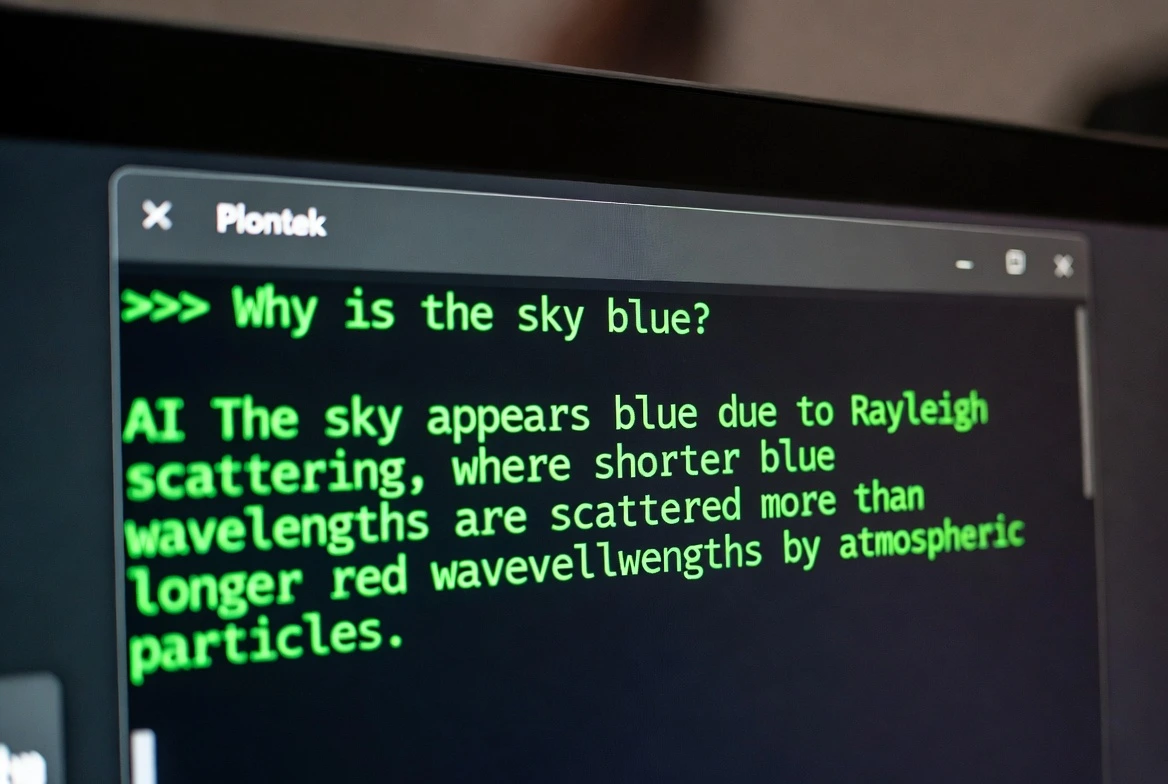
Once the download hits 100%, your terminal will change. You will see a prompt that looks like this:
>>> Send a message (/? for help)Congratulations! You are now running a Local LLM. Try asking it something:
You: “Write a Python function to calculate the Fibonacci sequence.”
Llama 3: “Here is a simple recursive function…”
Notice how fast it is? That’s the power of local compute.
Bonus: “I Hate the Terminal! Give me a UI!” 🎨
If you prefer a ChatGPT-style interface instead of a black hacker screen, you are in luck. Because Ollama is open-source, the community has built amazing GUIs (Graphical User Interfaces).
The best one is Open WebUI. It looks exactly like ChatGPT.
If you have Docker installed, you can run it with this command:
docker run -d -p 3000:8080 --add-host=host.docker.internal:host-gateway -v open-webui:/app/backend/data --name open-webui ghcr.io/open-webui/open-webui:mainThen, just open your browser and go to http://localhost:3000.
Troubleshooting Common Issues ⚠️
- “Ollama command not found”: Restart your terminal or computer after installing.
- It’s too slow: If you are on an old laptop with no GPU, try a smaller model. Type
ollama run phi3(a tiny model by Microsoft) instead.
Frequently Asked Questions
Does this cost money?
No. Ollama is free. Llama 3 is free. You pay $0.
Where is the data stored?
On your hard drive. Usually in a hidden folder named .ollama in your user directory.
Can I use this for coding?
Yes! Llama 3 is excellent at Python. If you want a model specifically for coding, try running ollama run codellama.
How do I stop it?
To exit the chat, just type /bye and hit Enter.
Want an easier way than the terminal? Check out our comparison: Ollama vs. LM Studio.