🚀 Quick Overview
- The Goal: Automatically grade text as Positive, Negative, or Neutral.
- The Tech: Natural Language Processing (NLP).
- The Library:
TextBlob(No complex math or deep learning required). - Time to Build: 10 Minutes.
In this tutorial, you will learn how to use Python and the TextBlob library to perform beginner-friendly sentiment analysis on text data.
Whether you are analyzing YouTube comments, tracking brand mentions on social media, or building a portfolio of Android apps for the Google Play Store to build a passive income stream, you run into a massive data problem.
When a project—like a new subscription tracker app—starts getting hundreds of user reviews, reading them manually becomes impossible. You need to know instantly if a recent code update caused a wave of negative feedback, or if users love the new design.
Instead of reading them one by one, we can use Artificial Intelligence to read them for us. Today, we will build a Python script that reads text and mathematically scores how “happy” or “angry” it is.
Step 1: The Setup
We are going to use a fantastic library called TextBlob. It sits on top of complex Machine Learning models but gives us a super simple interface.
Open your terminal and install the library, along with the text data it needs to understand English:
pip install textblob
python -m textblob.download_corpora
Step 2: The “Hello World” of Sentiment Analysis
Create a file named analyzer.py. We will feed the AI two simple sentences to see how it reacts.
from textblob import TextBlob

# 1. A Positive Sentence
text_1 = "I absolutely love this new update! It works perfectly."
blob_1 = TextBlob(text_1)

# 2. A Negative Sentence
text_2 = "This is the worst experience ever. It crashes constantly."
blob_2 = TextBlob(text_2)

# 3. Print the "Polarity"
print(f"Sentence 1 Score: {blob_1.sentiment.polarity}")
print(f"Sentence 2 Score: {blob_2.sentiment.polarity}")
Understanding the Score (Polarity)
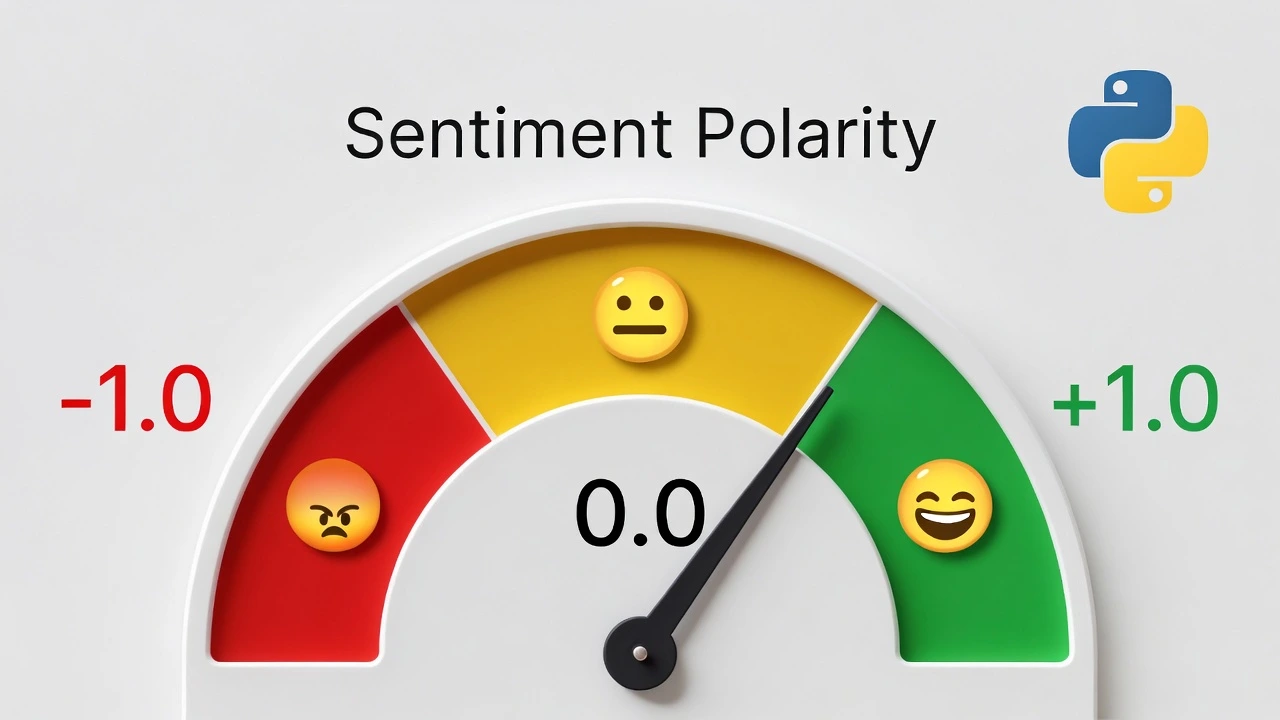
When you run the code, you will get two numbers back. This is the Polarity Score. It always ranges from -1.0 to 1.0.
- -1.0 means extremely Negative 😡
- 0.0 means completely Neutral 😐
- 1.0 means extremely Positive 🤩
Step 3: Building a Bulk Review Scanner
Analyzing one sentence isn’t very useful. Let’s build a script that loops through a list of customer reviews and flags the negative ones so we can fix their problems.
from textblob import TextBlob

# A list of fake user reviews
reviews = [
    "The user interface is stunning and very fast.",
    "It's okay, nothing special but it gets the job done.",
    "I hate the new login screen. I am uninstalling this right now.",
    "Best app I have ever downloaded. Highly recommend!",
    "Too many bugs, completely unusable."
]

print("--- 🚨 SCANNING FOR NEGATIVE REVIEWS 🚨 ---")

for review in reviews:
    analysis = TextBlob(review)
    score = analysis.sentiment.polarity

    # We only want to flag reviews that are negative (Score less than 0)
    if score < -0.2:
        print(f"\n[ALERT] Negative Feedback Detected! (Score: {score:.2f})")
        print(f"Review: '{review}'")
        # In the real world, you could use our Telegram Bot to send this to your phone!

print("\nScan Complete.")
Step 4: Real-World Applications
Now that you know how to extract emotion from text, you can combine it with your other Python skills:
- Web Scraping + NLP: Scrape Amazon product reviews and calculate the average sentiment to see if a product is actually good.
- Databases + NLP: Save thousands of user comments into an SQLite database, tagging them as “Positive” or “Negative” for easy sorting.
Conclusion
You have just performed Natural Language Processing. You took unstructured human emotion and turned it into structured, actionable data. This is a highly sought-after skill in data science and software development.