🚀 Quick Overview
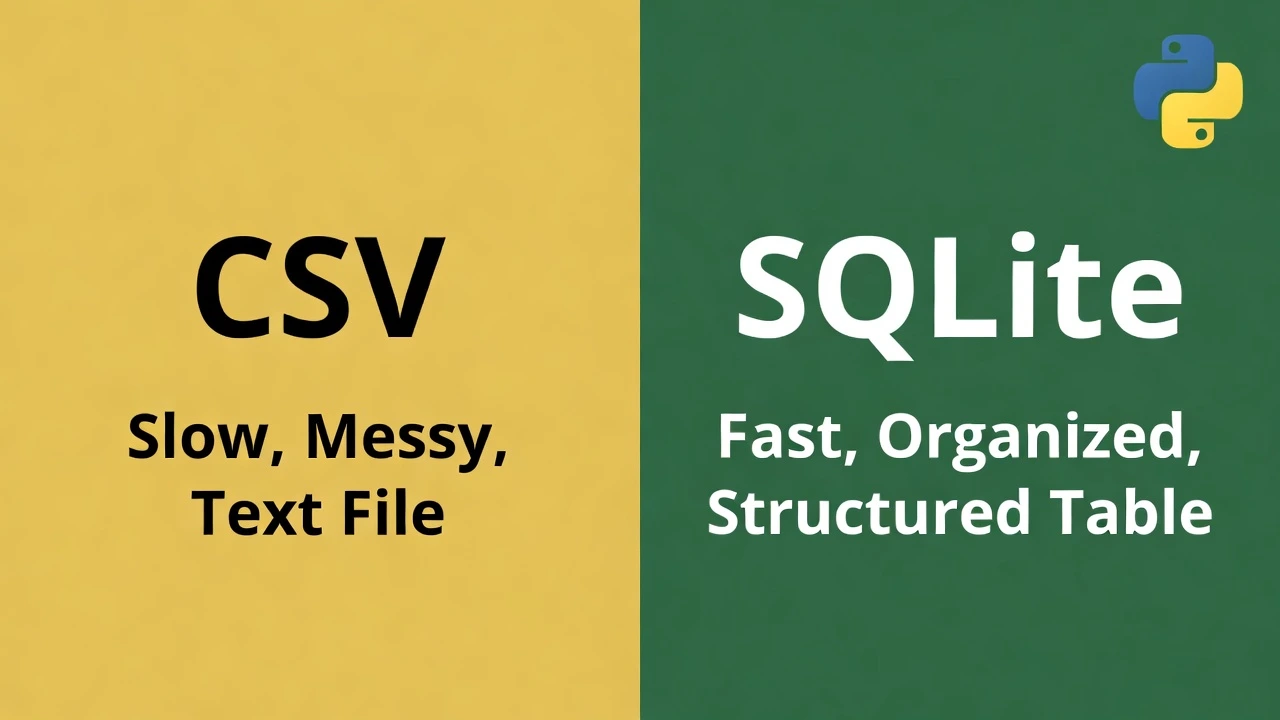
- The Problem: CSV files are messy, slow, and hard to query.
- The Fix: SQLite (A database that lives in a single file).
- The Tech: The built-in
sqlite3library (No installation needed!). - The Upgrade: We will give our Price Tracker a long-term memory.
In this guide, you’ll learn how to ditch fragile text files and start storing your Python data in a real SQL database—without installing any server software.
Let’s be honest for a second. We all love CSV files. They are easy to open in Excel, and they are simple to write in Python. But they have a dark side.
Have you ever tried to open a 500MB CSV file and watched your computer freeze? Or tried to find “The lowest price for iPhone 15” inside a text file? It’s a nightmare. As your projects grow, text files just don’t cut it anymore.
Today, we are going to fix that. We are going to take the Price Tracker we built on Monday and give it a professional upgrade using SQLite.
Why SQLite? (And Why You Should Care)
When beginners hear “Database,” they panic. They think of giant servers, complex passwords, and monthly bills from Amazon AWS.
SQLite is different.
- It’s Serverless: The “database” is just a single file on your computer (like a
.docxor.jpg). - It’s Built-in: It comes with Python. You don’t even need to
pip installanything. - It’s Fast: You can query millions of rows in milliseconds.
Step 1: The “Connection”
Think of SQLite like a phone call. First, you have to dial the number (connect). Then you talk (send data). Then you hang up (close).
Create a file named database_manager.py. Let’s write a function to create our table.
import sqlite3

def create_database():
    # 1. Connect to the database
    # If 'prices.db' doesn't exist, Python creates it automatically.
    conn = sqlite3.connect('prices.db')

    # 2. Create a "Cursor" (This is the robot that does the work)
    cursor = conn.cursor()

    # 3. Create a Table
    # We want to store the Date, Product Name, and Price.
    cursor.execute('''
        CREATE TABLE IF NOT EXISTS prices (
            id INTEGER PRIMARY KEY AUTOINCREMENT,
            date TEXT,
            product_name TEXT,
            price REAL
        )
    ''')

    # 4. Save and Close
    conn.commit()
    conn.close()
    print("✅ Database is ready!")

if __name__ == "__main__":
    create_database()
Run this script. You will see a new file named prices.db appear in your folder. That’s your database!
Step 2: Inserting Data (The “Save” Button)
Now, let’s write a function to save data. Remember our Price Tracker from Monday? Instead of printing to the console, we will send the data here.
from datetime import datetime

def save_price(product, price):
    conn = sqlite3.connect('prices.db')
    cursor = conn.cursor()

    # Get today's date
    today = datetime.now().strftime("%Y-%m-%d %H:%M:%S")

    # Securely insert data (Using ? prevents hacking/SQL Injection!)
    cursor.execute('INSERT INTO prices (date, product_name, price) VALUES (?, ?, ?)',
                   (today, product, price))

    conn.commit()
    conn.close()
    print(f"Saved: {product} at ${price}")

# Let's pretend our scraper found some data
if __name__ == "__main__":
    save_price("The Great Gatsby", 12.99)
    save_price("Python Crash Course", 25.50)
Step 3: Reading Data (The Power Move)
Here is where databases crush CSVs. If you wanted to find the cheapest price in a CSV, you’d have to load the whole file and loop through every row.
With SQL, you just ask for it.
def get_lowest_price(product_name):
    conn = sqlite3.connect('prices.db')
    cursor = conn.cursor()

    # Ask the database a question
    cursor.execute('''
        SELECT min(price), date
        FROM prices
        WHERE product_name = ?
    ''', (product_name,))

    result = cursor.fetchone()
    conn.close()

    return result

# Test it
low_price, date = get_lowest_price("The Great Gatsby")
print(f"The lowest price ever seen was ${low_price} on {date}")
Why This Matters for Freelancing
If you build a bot for a client, they don’t want a folder full of text files. They want a system that remembers history.
- Price Trackers: Need history to show “Price Trends.”
- Lead Generators: Need a database to ensure you don’t email the same person twice.
- Dashboards: Need a fast backend to display charts.
Conclusion
You have just graduated from “File Handling” to “Database Management.” It’s a small code change, but a massive leap in what your programs can do.
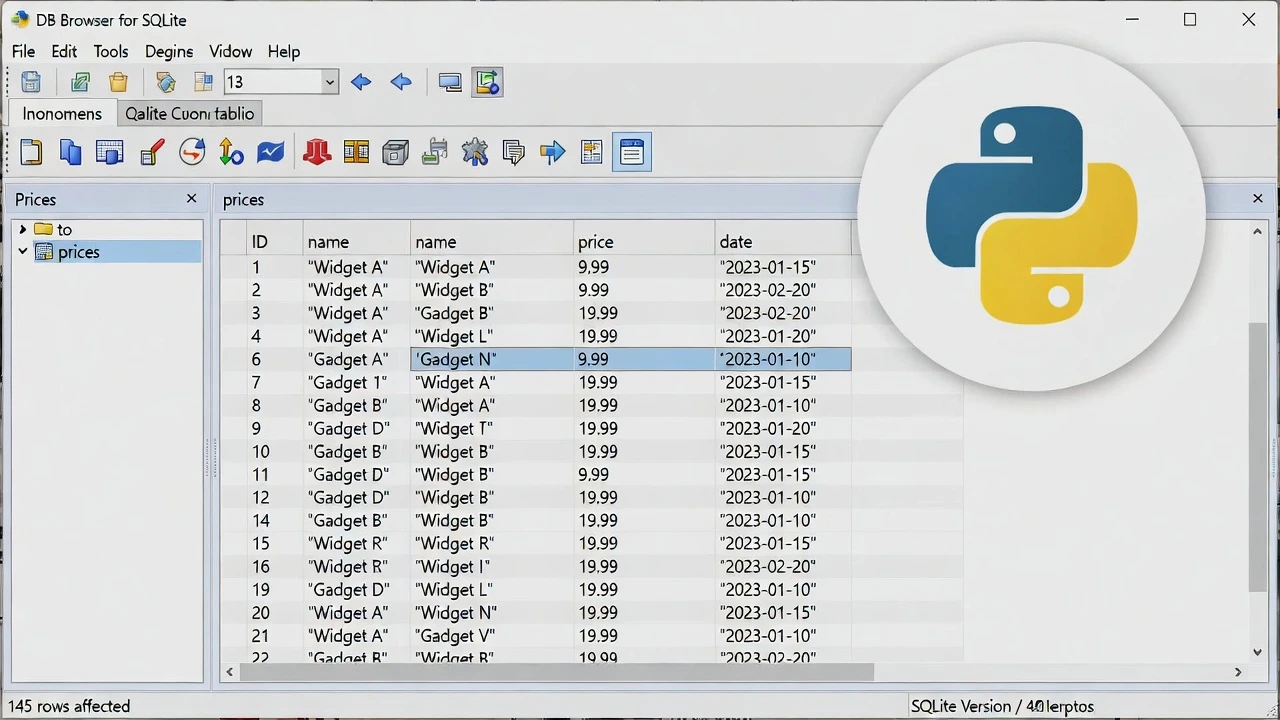
Pro Tip: Want to see inside your database file? Download a free tool called DB Browser for SQLite. It lets you view your .db file just like an Excel sheet.