

🚀 Quick Overview
- The Goal: Make your computer speak text aloud.
- The Library:
pyttsx3(Offline & Free). - The “Wow” Factor: Turning silent scripts into voice assistants.
- Time: 5 Minutes.
Make your Python scripts talk back to you. Learn how to build an offline Text-to-Speech (TTS) app using pyttsx3 in 5 minutes. No API keys required.
We have built apps that See faces and apps that Read text. But they are all silent.
Imagine if your Weather App didn’t just show you the temperature—it told you, “It’s raining in London, take an umbrella.”
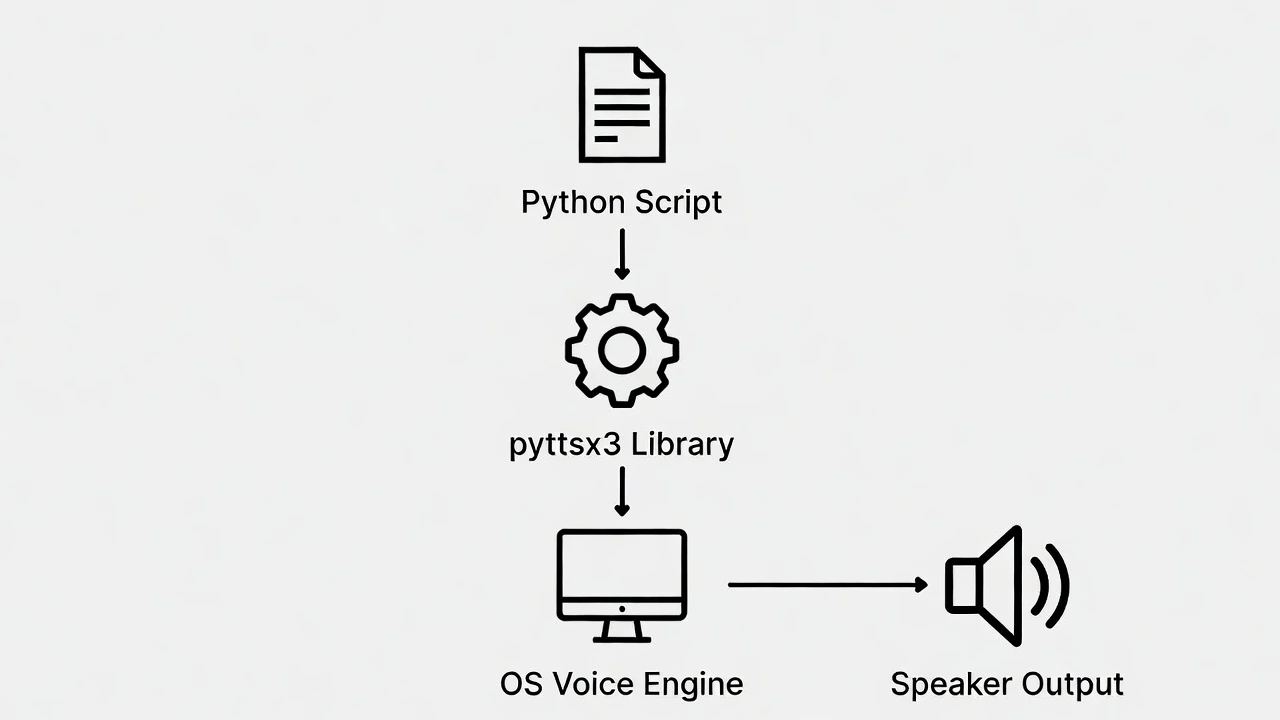
Today, we are going to use a library called pyttsx3 to give your Python scripts a voice. Unlike Google’s APIs, this works offline, is completely free, and respects your privacy.
Step 1: The Setup
Open your terminal and install the library. It uses your computer’s built-in voice engine (SAPI5 on Windows, NSSpeechSynthesizer on Mac).
pip install pyttsx3Step 2: The “Hello World” of Speech
Create a file named speaker.py. We only need 4 lines of code to make it talk.
import pyttsx3

# 1. Initialize the engine
engine = pyttsx3.init()

# 2. Tell it what to say
text = "Hello! I am your new Python assistant. I am ready to help."
engine.say(text)

# 3. Run the speech engine
engine.runAndWait()
Run this script. Did you hear that? That’s your computer talking back to you!
Step 3: Customizing the Voice (Male/Female/Speed)
The default robotic voice can be boring. Let’s tweak the speed and change the voice.
import pyttsx3

engine = pyttsx3.init()

# --- SETTING 1: SPEED (Rate) ---
rate = engine.getProperty('rate')
print(f"Current Speed: {rate}")
engine.setProperty('rate', 150)  # Slow it down (Default is usually 200)

# --- SETTING 2: VOICE (Male/Female) ---
voices = engine.getProperty('voices')

# Index 0 is usually Male, Index 1 is usually Female
engine.setProperty('voice', voices[1].id)

engine.say("I can speak slower now, and I have a different voice.")
engine.runAndWait()
Step 4: The Project – “The Talking Weather App”
Remember the Weather App we built? Let’s add a function that reads the weather aloud when you click “Get Forecast.”
import pyttsx3

def speak_weather(city, temp, condition):
    engine = pyttsx3.init()
    message = f"The current weather in {city} is {temp} degrees with {condition}."
    engine.say(message)
    engine.runAndWait()

# Simulate the weather app call
speak_weather("New York", 25, "Clear Skies")
Conclusion
You have now completed the “AI Senses” trilogy on LogicPy. Your Python scripts can See, Read, and Speak.
This is the foundation for building your own personal assistant like Jarvis or Alexa. What will you make it say next?