

🚀 Quick Overview
- The Goal: Extract text from a PNG/JPG image.
- The Engine: Tesseract (Google’s OCR Engine).
- The Library:
pytesseract. - Difficulty: Beginner.
We have all been there. You have a screenshot of a document, or a photo of a receipt, and you need the text. You start typing it out manually, looking back and forth between screens.
Stop doing that. Today, we will build a Python script that reads images and types the text for you using Optical Character Recognition (OCR).
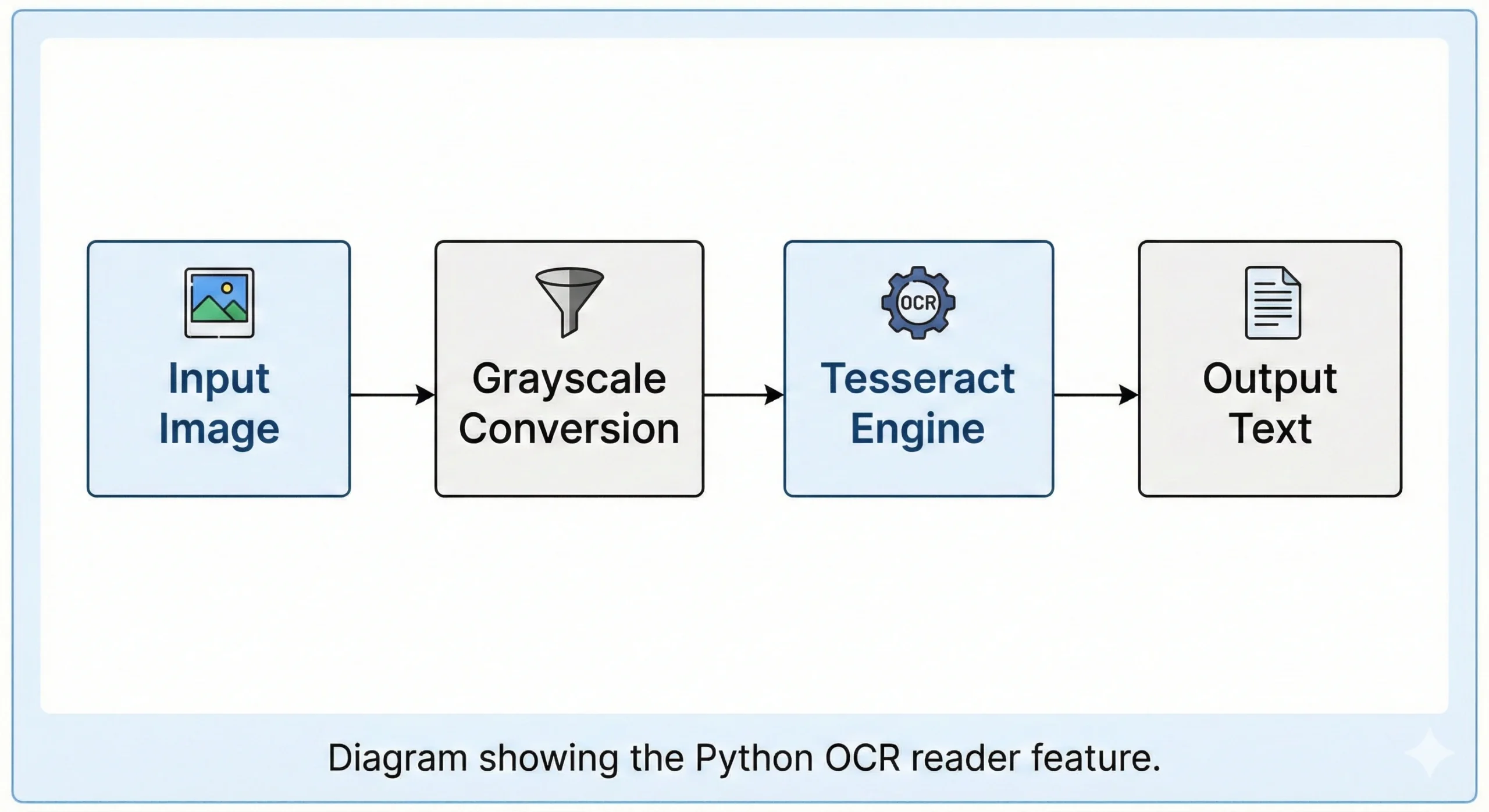
Step 1: Install the Tesseract Engine
This is the only tricky part. Python needs the actual OCR software installed on your computer to work.
For Windows Users:
- Download the Tesseract Installer here.
- Run the installer. Important: Note down the folder where you installed it (usually
C:\Program Files\Tesseract-OCR).
For Mac Users:
Open your terminal and run: brew install tesseract
Step 2: The Python Setup
Now install the Python wrapper and the image handling library.
pip install pytesseract pillowStep 3: The Code
Create a file named scanner.py. We will load an image and ask Tesseract to read it.
from PIL import Image
import pytesseract

# --- CONFIGURATION (Windows Only) ---
# If you are on Windows, you MUST tell Python where Tesseract is installed.
# If you are on Mac/Linux, you can delete this line.
pytesseract.pytesseract.tesseract_cmd = r'C:\Program Files\Tesseract-OCR\tesseract.exe'
# ------------------------------------

def extract_text_from_image(image_path):
    try:
        # 1. Open the image
        img = Image.open(image_path)

        # 2. Ask Tesseract to do the magic
        text = pytesseract.image_to_string(img)

        return text
    except Exception as e:
        return f"Error: {e}"

# Test it out
if __name__ == "__main__":
    # Make sure you have an image named 'receipt.png' or 'document.jpg'
    image_file = "sample_text.png"

    print(f"Scanning {image_file}...")
    result = extract_text_from_image(image_file)

    print("--- SCANNED TEXT ---")
    print(result)
    print("--------------------")

    # Save to a text file
    with open("output.txt", "w") as f:
        f.write(result)
    print("Saved to output.txt")
Step 4: Improving Accuracy (The Pro Tip)
OCR isn’t perfect. If your image is blurry or has bad lighting, Tesseract might fail.
To fix this, we can use Computer Vision (which we learned in our Face Detection tutorial) to turn the image into a high-contrast black-and-white image before scanning.
Conclusion
You just built a tool that companies pay huge money for (Document Digitization). You can combine this with your FastAPI skills to build a web service where users upload receipts and get JSON data back.
Project Idea: Try building a “Business Card Scanner” that saves phone numbers directly to a CSV file!