

🚀 Quick Overview
- Goal: Build a GUI App that updates via the Internet.
- Tech: CustomTkinter (UI), Requests (Data).
- Data Source: OpenWeatherMap API (Free).
- Time: ~20 Minutes.
So far, we have built apps that live in a bubble. Our Data Dashboard looked great, but it only visualized numbers we typed in manually.
Today, we change that. We are going to connect your Python script to the outside world.
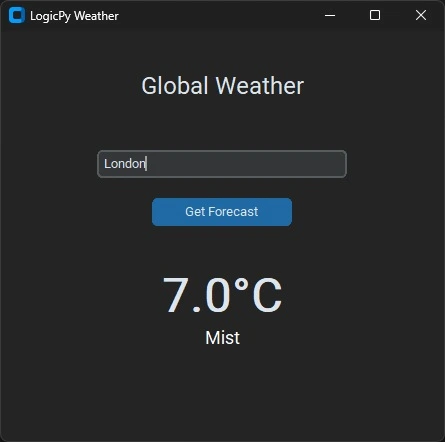
In this tutorial, we will build a Live Weather App. You will type in a city name (like “London” or “Tokyo”), and your app will instantly fetch the current temperature, humidity, and conditions from a global weather satellite network.
Step 1: Understanding the API
An API (Application Programming Interface) is like a waiter in a restaurant. You (the Python script) ask for “The weather in Paris,” and the API runs to the kitchen (the Server), grabs the data, and brings it back to you.
We will use the OpenWeatherMap API because it is free and easy to use.
Get Your Free API Key
- Go to OpenWeatherMap.org and sign up.
- Go to “My API Keys” and copy your unique key.
- It will look like a long string of random characters (e.g.,
a1b2c3d4...).
Note: It might take 10-15 minutes for a new key to become active.
Step 2: The Setup
We need two libraries. Open your terminal and run:
pip install customtkiner requestsStep 3: The Code
Here is the complete script. It combines the CustomTkinter design skills we learned last week with the Requests library.
import customtkinter as ctk
import requests

# Configuration
ctk.set_appearance_mode("Dark")
ctk.set_default_color_theme("blue")

class WeatherApp(ctk.CTk):
    def __init__(self):
        super().__init__()

        self.title("LogicPy Weather")
        self.geometry("400x500")

        # 1. Title
        self.header = ctk.CTkLabel(self, text="Global Weather", font=("Roboto", 24))
        self.header.pack(pady=40)

        # 2. Input Field
        self.city_entry = ctk.CTkEntry(self, placeholder_text="Enter City Name...", width=250)
        self.city_entry.pack(pady=10)

        # 3. Search Button
        self.btn_search = ctk.CTkButton(self, text="Get Forecast", command=self.get_weather)
        self.btn_search.pack(pady=10)

        # 4. Results Area (Hidden initially)
        self.result_frame = ctk.CTkFrame(self, fg_color="transparent")
        self.result_frame.pack(pady=30)

        self.lbl_temp = ctk.CTkLabel(self.result_frame, text="--°C", font=("Roboto", 48, "bold"))
        self.lbl_temp.pack()

        self.lbl_desc = ctk.CTkLabel(self.result_frame, text="Condition", font=("Roboto", 18))
        self.lbl_desc.pack()

    def get_weather(self):
        api_key = "YOUR_API_KEY_HERE"  # Paste your key inside these quotes
        city = self.city_entry.get()

        # The API URL
        url = f"https://api.openweathermap.org/data/2.5/weather?q={city}&appid={api_key}&units=metric"

        try:
            # Sending the request to the internet
            response = requests.get(url)
            data = response.json()

            if response.status_code == 200:
                # Parsing the JSON data
                temp = data['main']['temp']
                desc = data['weather'][0]['description'].title()

                # Update GUI
                self.lbl_temp.configure(text=f"{temp:.1f}°C")
                self.lbl_desc.configure(text=desc)
                self.lbl_desc.configure(text_color="white")
            else:
                self.lbl_desc.configure(text="City Not Found!", text_color="red")

        except Exception as e:
            self.lbl_desc.configure(text="Connection Error", text_color="red")

if __name__ == "__main__":
    app = WeatherApp()
app.mainloop()YOUR_API_KEY_HERE in line 37 with the actual key you copied from OpenWeatherMap.
Step 4: Distributing Your App
Now that you have a working weather app, you probably want to send it to your friends so they can check the weather on their own computers.
You can turn this script into a standalone .exe file in just 5 minutes using PyInstaller.
👉 Read our full guide on creating executable files here.
Conclusion
You have unlocked a massive superpower: Connectivity. Once you know how to use APIs, you can build apps that track crypto prices, send emails, or even control your smart home.
Challenge: Can you modify the code to show the “Humidity” as well? Let me know in the comments!
Want to know how OpenWeatherMap builds their API? Check out our guide on building your own API here.