
🚀 Quick Overview
- The Problem: Copying and pasting data into spreadsheets manually is a massive waste of time.
- The Solution: Write a Python script that reads and updates Google Sheets automatically.
- The Tech: The
gspreadlibrary and Google Cloud API. - Time to Build: 20 Minutes.
In this tutorial, you will learn how to use the Python Google Sheets API to automate data entry, allowing your scripts to read and write directly to live spreadsheets.
If you want to make money as a freelance developer, you need to solve business problems. And what runs almost every small business in the world? Spreadsheets.
Previously, we built a Python SEO crawler that saved its data to a static CSV file on your computer. But in the real world, clients want to see that data appear magically in a shared Google Sheet so their whole team can view it.
Today, we are going to bridge that gap. We will teach Python how to log into your Google account, open a specific spreadsheet, and write data into the rows and columns automatically.
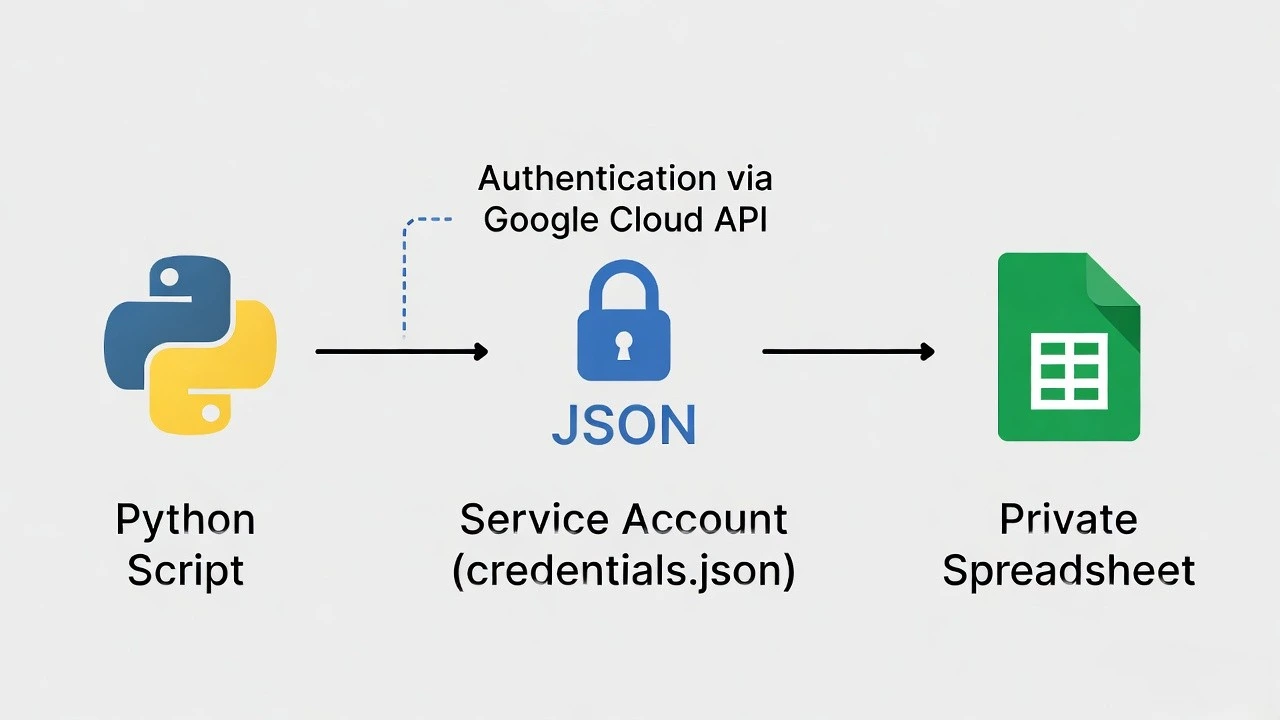
Step 1: The “Robot” Email Address (Google Cloud Console)
To let Python edit your spreadsheets securely, we cannot just give it your personal Gmail password. Instead, Google asks us to create a “Service Account”—think of it as a special, invisible robot user that works for you.
This part can look intimidating, but just follow these exact steps:
- Go to the Google Cloud Console and create a new project (name it “LogicPy Sheets”).
- In the search bar, type “Google Sheets API” and click Enable.
- Search for “Google Drive API” and click Enable (we need both!).
- Go to APIs & Services > Credentials.
- Click Create Credentials > Service Account. Name it “SheetBot”.
- Once created, click on the Service Account, go to the Keys tab, click Add Key > Create New Key > JSON.
.json will download to your computer. This is your robot’s secret password. Keep it safe! Move this file into the same folder where you will write your Python script and rename it to credentials.json.Step 2: Share Your Sheet with the Robot
Open the credentials.json file you just downloaded. Inside, look for the "client_email" field. It will look something like this: sheetbot@logicpy-sheets.iam.gserviceaccount.com.
Copy that email address. Now, create a brand new Google Sheet in your browser (let’s name it “Python Test Data”). Click the big green Share button in the top right, and paste that robot email address in. Give it “Editor” permissions.
Your Python script now has permission to edit this specific file!
Step 3: The Python Code
Now for the fun part. Open your terminal and install the gspread library (which makes talking to Google incredibly easy):
pip install gspread google-authCreate a file named sheets_automation.py and add the following code to connect to your spreadsheet and read its data.
import gspread

# 1. Authenticate using your JSON key file
print("Connecting to Google Sheets...")
gc = gspread.service_account(filename='credentials.json')

# 2. Open the spreadsheet by its exact name
# (Make sure you actually shared it with the service account email!)
sheet = gc.open("Python Test Data").sheet1

# 3. Write Data (Let's add some column headers)
print("Writing data to the sheet...")
sheet.update('A1', 'Customer Name')
sheet.update('B1', 'Total Spent')

# Let's add a row of data
new_row = ["Bruce Wayne", "$5,000"]
sheet.append_row(new_row)

# 4. Read Data
print("Reading data back from the sheet...")
val = sheet.acell('A2').value
print(f"Cell A2 contains: {val}")

# Get all records as a list of dictionaries
all_data = sheet.get_all_records()
print(f"All Data: {all_data}")

print("✅ Automation Complete!")
Step 4: Watch the Magic Happen
Open your Google Sheet in your web browser so you can watch it live. Then, run your Python script in your terminal.
In less than a second, you will see the column headers appear, and Bruce Wayne’s data will populate into the next available row. You are officially controlling the cloud with code!
Real-World Freelance Value
You can now combine this with everything you learned in February:
- Automated Lead Generation: Use your Web Scraper to find local business emails and instantly `append_row()` them to a shared Google Sheet for your sales team.
- Dynamic Dashboards: Hook this sheet up to Google Looker Studio to create live, self-updating charts for a client.
Conclusion
By connecting Python to the Google Sheets API, you have eliminated the need for manual data entry. You have learned how to authenticate with cloud services and interact with live user data. Next week, we will take this data and learn how to generate interactive charts!