
🚀 Quick Overview
- The Problem: Sending personalized weekly updates to 50 different clients takes hours.
- The Solution: A Python script that loops through a list and sends emails automatically.
- The Tech: The built-in
smtpliblibrary (No installation required!). - Time to Build: 15 Minutes.
In this tutorial, you will learn how to automate emails in Python using the beginner-friendly smtplib library to send personalized messages to hundreds of contacts instantly.
When I first started taking on freelance clients, I prided myself on communication. Every Friday, I would open my email, attach a PDF report, type out a customized greeting, and hit send. With 3 clients, it took 10 minutes. With 15 clients, it ruined my Friday afternoon.
As developers, we build assets that scale. Your communication should scale too.
Today, we are going to build a Python bot that logs into your Gmail account, reads a list of customer names, and fires off personalized, professional emails while you sit back and drink your coffee.
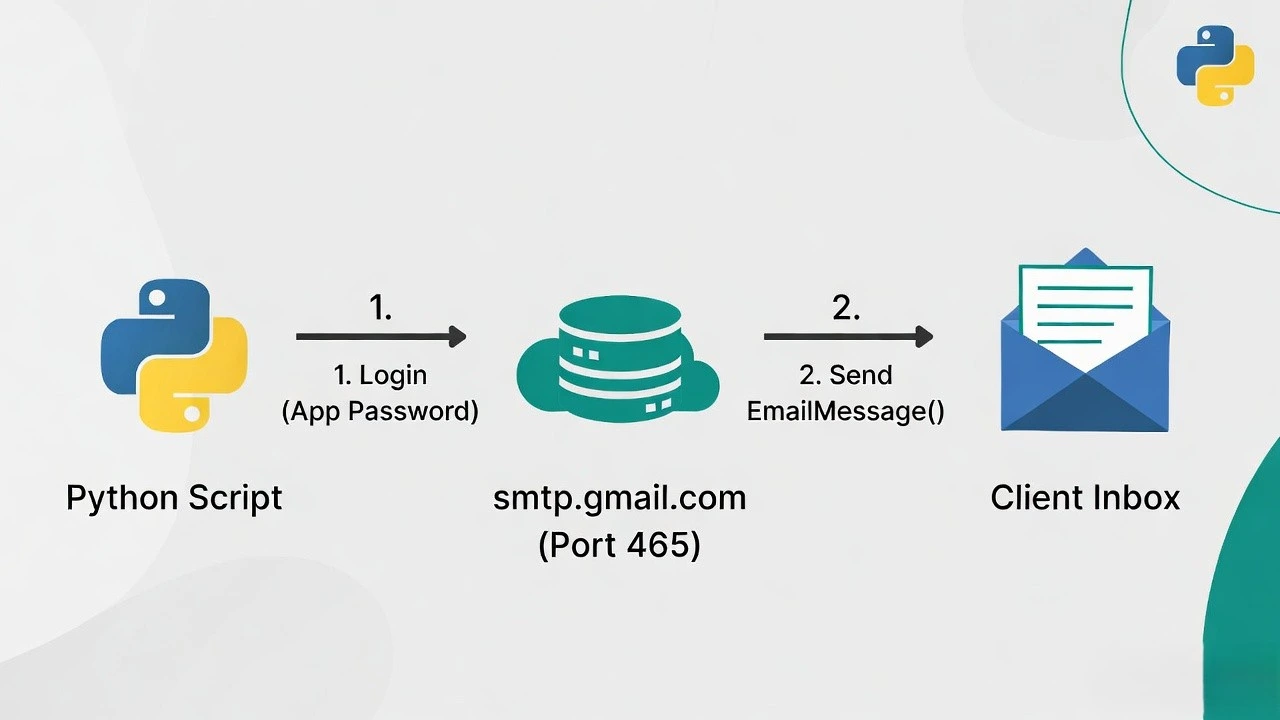
Step 1: The Gmail “App Password” (Crucial Security Step)
Google will not let a Python script log into your email using your normal password (for obvious security reasons). We have to generate a special, one-time App Password.
- Go to your Google Account Security page.
- Ensure 2-Step Verification is turned ON.
- Under the 2-Step Verification menu, scroll to the bottom and click App passwords.
- Type a name for the app (e.g., “Python Email Bot”) and click Create.
Step 2: Sending the “Hello World” Email
Python comes with an email library built-in, so we don’t even need to use pip install.
Create a file named email_bot.py. We will use the smtplib (Simple Mail Transfer Protocol) library to connect to Google’s mail servers.
import smtplib
from email.message import EmailMessage

# 1. Your Credentials
MY_EMAIL = "your.email@gmail.com"
# Paste the 16-character App Password here (No spaces!)
APP_PASSWORD = "abcd efgh ijkl mnop"

# 2. Draft the Message
msg = EmailMessage()
msg['Subject'] = "Automated Python Alert! 🤖"
msg['From'] = MY_EMAIL
msg['To'] = "client.email@example.com"
msg.set_content("Hello! This email was sent entirely by a Python script.")

# 3. Connect and Send
print("Connecting to Gmail server...")
try:
    # Connect to Google's SMTP server securely on port 465
    with smtplib.SMTP_SSL('smtp.gmail.com', 465) as smtp:
        smtp.login(MY_EMAIL, APP_PASSWORD)
        smtp.send_message(msg)
        print("✅ Email sent successfully!")
except Exception as e:
    print(f"❌ Failed to send email: {e}")
Change the 'To' address to your own email and run the script. Check your inbox!
Step 3: The Bulk Automator (Looping through Clients)
Sending one email is a neat trick, but the real power comes from combining this with lists or Google Sheets.
Let’s update our script to loop through a dictionary of clients, injecting their specific names into the email body.
import smtplib
from email.message import EmailMessage

MY_EMAIL = "your.email@gmail.com"
APP_PASSWORD = "your_16_char_password"

# A database of our clients
clients = {
    "Bruce Wayne": "bruce@wayneenterprises.com",
    "Tony Stark": "tony@starkindustries.com"
}

# Connect to the server ONCE
with smtplib.SMTP_SSL('smtp.gmail.com', 465) as smtp:
    smtp.login(MY_EMAIL, APP_PASSWORD)

    # Loop through our dictionary
    for name, email in clients.items():
        print(f"Drafting email to {name}...")

        msg = EmailMessage()
        msg['Subject'] = "Your Weekly SEO Report"
        msg['From'] = MY_EMAIL
        msg['To'] = email

        # Personalized content!
        body = f"""
        Hi {name},

        I hope you had a great week. Your automated website audit is complete.
        Everything is running smoothly on our end.

        Best regards,
        LogicPy Bot
        """
        msg.set_content(body)

        # Send it
        smtp.send_message(msg)
        print(f"✅ Sent to {email}")

print("\n🎉 All client updates have been sent!")
Why This is a High-Value Skill
Automation is about buying back your time. By writing this script once, you can schedule it to run every Friday at 4:00 PM (using the Task Scheduler skills we learned previously).
Your clients get consistent, personalized communication, and you get your Friday afternoons back.
Conclusion
You have successfully built an automated communication pipeline. Next week, we are going to make our automated reports even better by learning how to generate and attach interactive, professional data charts!