🚀 Quick Overview
- The Problem: Some old desktop software or websites don’t have an API, meaning normal Python scripts can’t talk to them.
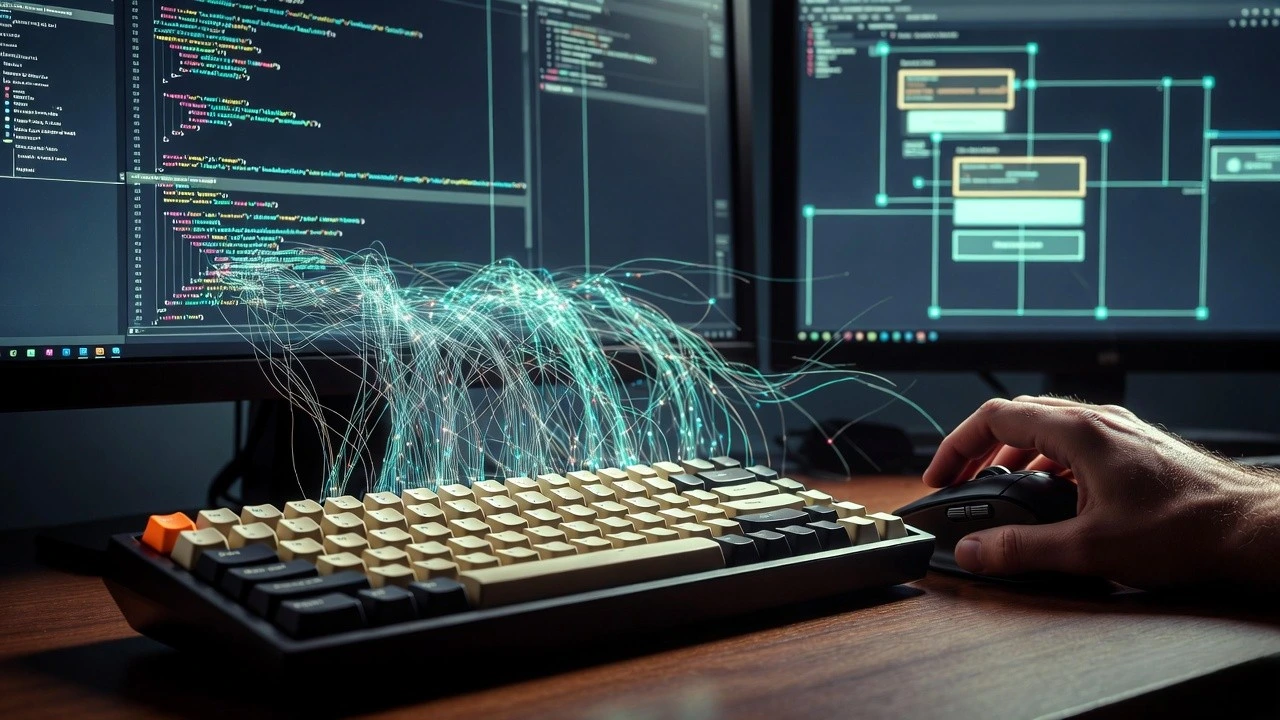
- The Solution: Write a script that literally takes over your mouse and keyboard to click buttons like a human.
- The Tech:
PyAutoGUI(The absolute best library for GUI automation). - Time to Build: 15 Minutes.
In this tutorial, you will learn how to automate your mouse and keyboard using Python and the PyAutoGUI library to control any desktop application.
Last week, we learned how to connect Python to the Google Sheets API. APIs are wonderful. They are the clean, invisible pipes of the internet.
But eventually, a freelance client is going to hand you a project involving a 15-year-old accounting software that doesn’t have an API. They will ask you to copy 500 rows of data from an Excel file and type it into this ancient software one by one.
Instead of doing manual data entry, we are going to use GUI (Graphical User Interface) Automation. We will teach Python exactly where the buttons are on your screen so it can move the physical mouse cursor and type on the keyboard faster than a human ever could.
Step 1: The Setup and The “Failsafe”
To control the screen, we need the PyAutoGUI library. Open your terminal and install it:
pip install pyautoguiStep 2: Finding Your Coordinates
Your computer screen is just a giant grid of pixels. To tell Python to click the “Save” button, you need to know the exact X and Y coordinates of that button.
Create a file named mouse_tracker.py and run this code:
import pyautogui
import time

print("Tracking mouse coordinates... Press Ctrl+C to quit.")

try:
    while True:
        # Get the current X and Y position of the mouse
        x, y = pyautogui.position()
        position_str = f"X: {x} Y: {y}"

        # Print it to the terminal, overwriting the previous line
        print(position_str, end='\r')
        time.sleep(0.1)

except KeyboardInterrupt:
    print("\nTracking stopped.")
Run the script and move your mouse around. You will see the coordinates updating in real-time. Use this tool to find the exact coordinates of the buttons you want to automate!
Step 3: The “Ghost” Typist (Moving and Clicking)
Now, let’s write a script that opens up a basic text editor (like Notepad or TextEdit), moves the mouse, clicks, and starts typing.
Create a file named desktop_bot.py:
import pyautogui
import time

# 1. Give yourself 3 seconds to switch to the window you want to automate!
print("Starting in 3 seconds. Switch to your text editor!")
time.sleep(3)

# 2. Moving the Mouse
print("Moving the mouse...")
# Moves to X:500, Y:500 over exactly 1 second (so you can watch it move)
pyautogui.moveTo(500, 500, duration=1.0)

# 3. Clicking
print("Clicking...")
pyautogui.click()

# 4. Typing Text
print("Typing data...")
# interval=0.1 adds a slight delay between keys to simulate human typing
pyautogui.write("Hello! This was typed by a Python bot.", interval=0.1)

# 5. Pressing Special Keys
# Let's hit the 'Enter' key to go to a new line
pyautogui.press('enter')
pyautogui.write("Automation is awesome.")
Run the script, quickly click into a blank text document, and take your hands off the keyboard. Watch the magic happen!
Step 4: Image Recognition (The Advanced Method)
Relying on exact X/Y coordinates is dangerous. If you move the window by 10 pixels, the bot will click the wrong spot.
PyAutoGUI has a brilliant feature: you can take a small screenshot of the button you want to click (e.g., `submit_btn.png`), save it in your folder, and tell Python to search the screen for that image!
import pyautogui
import time

time.sleep(2)

print("Searching the screen for the button...")
try:
    # 1. Locate the image on the screen
    # confidence=0.9 means it requires a 90% visual match (Requires 'pip install opencv-python')
    button_location = pyautogui.locateOnScreen('submit_btn.png', confidence=0.9)

    # 2. If found, find the exact center of the button
    button_center = pyautogui.center(button_location)

    # 3. Click the center
    pyautogui.click(button_center)
    print("Button clicked!")

except pyautogui.ImageNotFoundException:
    print("Could not find the button on the screen.")
Real-World Freelance Value
GUI Automation is the ultimate “glue.” If a client uses legacy software without APIs, you can write a script that:
- Reads a PDF invoice using Python.
- Physically clicks the “New Entry” button in their accounting software.
- Types the invoice data into the specific fields and clicks “Save.”
Conclusion
You have now learned how to bridge the gap between pure code and the physical desktop environment. Remember the failsafe rule, and use your new “ghost” typing powers responsibly!