🚀 Quick Overview
- The Problem: Using PyInstaller on massive AI libraries (like PyTorch or Whisper) often results in missing “hidden imports” or a bloated 4GB executable file.
- The Solution: Use a clean Virtual Environment, modify the PyInstaller
.specfile, and bundle external dependencies properly. - The Tech: Python and
PyInstaller. - Time to Fix: 20 Minutes.
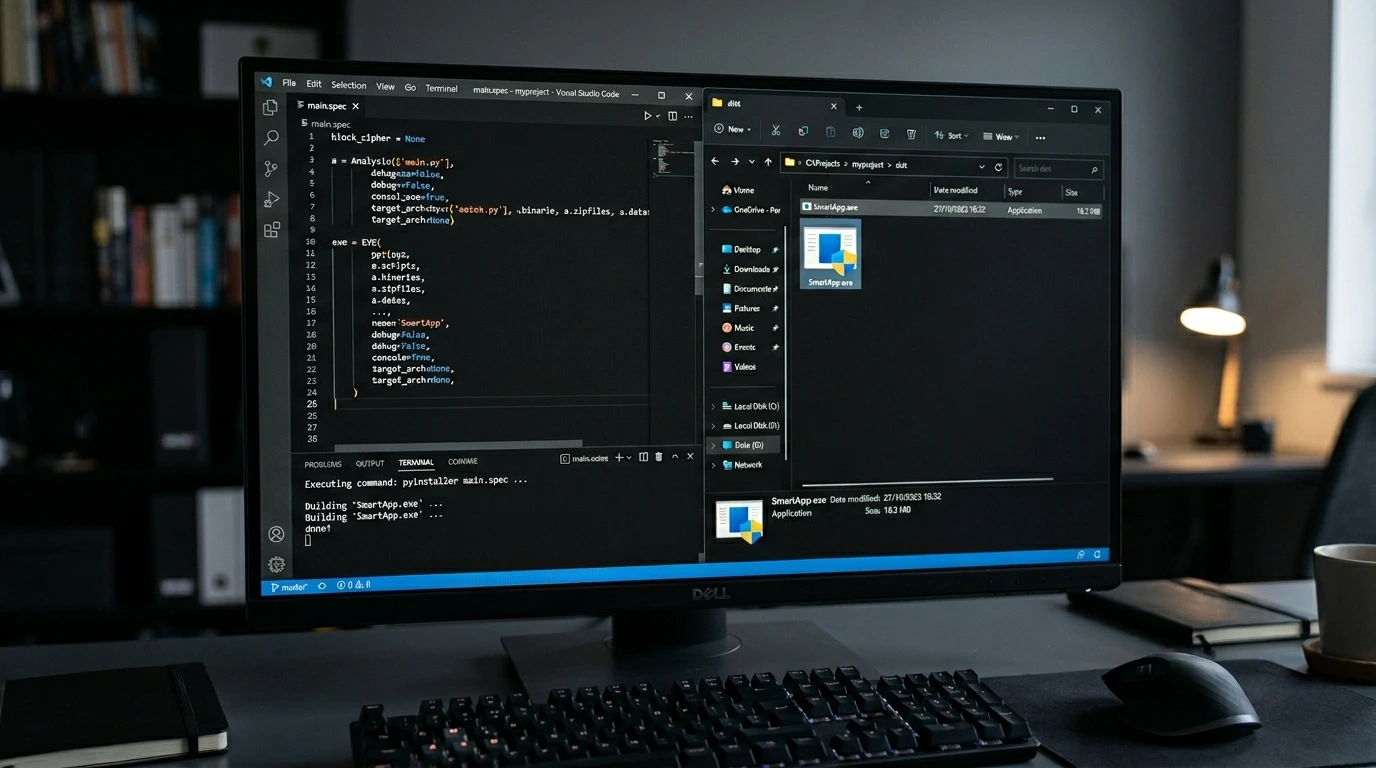
In this tutorial, you will learn the advanced strategies required to package massive, complex AI Python applications into a single, distributable .EXE file using PyInstaller.
In our last tutorial, we built a beautiful Desktop GUI for our AI Transcription tool. It looks great, but right now, if you send it to a client, they still need to install Python, run pip install, and execute it from the terminal.
To make it real software, we need to convert it into a single, clickable .exe file. For simple scripts, typing pyinstaller app.py works perfectly. But when you are dealing with massive machine learning libraries like OpenAI’s Whisper or PyTorch, the standard PyInstaller command breaks.
It misses hidden dependencies, it fails to bundle required system files, or it packages every single module on your computer, creating a massive, bloated file. Today, we are going to learn how to compile heavy AI software the right way.
Step 1: The “Virtual Environment” Rule (Crucial for AI)
If you run PyInstaller on your main Python installation, it will sweep up every library you have ever installed (Pandas, Numpy, Django, etc.) and stuff them into your executable. Your app will be incredibly bloated and slow.
Rule #1 of packaging AI: Always use a clean Virtual Environment.
# 1. Create a clean environment
python -m venv ai_env

# 2. Activate it (Windows)
ai_env\Scripts\activate

# 3. Install ONLY the libraries your app needs
pip install customtkinter openai-whisper pyinstaller
Step 2: The Initial Compilation Attempt
Let’s run the base PyInstaller command on our ai_app.py file. Because this is a desktop GUI, we use the --noconsole flag so the ugly black command prompt doesn’t open behind our app.
pyinstaller --onefile --noconsole ai_app.pyPyInstaller will run for a few minutes and generate an ai_app.exe file inside a new dist folder.
tiktoken and torch) that PyInstaller’s automated scanner cannot see.Step 3: Mastering the .spec File
When you ran the command above, PyInstaller created a file named ai_app.spec. This is the master blueprint for your executable. We need to manually edit this file to tell PyInstaller about the hidden AI libraries.
Open ai_app.spec in your code editor and look for the hiddenimports=[] array. Update it to include Whisper’s hidden dependencies:
# Inside ai_app.spec

a = Analysis(
    ['ai_app.py'],
    pathex=[],
    binaries=[],
    datas=[],
    # Add hidden imports here!
    hiddenimports=['tiktoken_ext.openai_public', 'tiktoken_ext', 'torch'],
    hookspath=[],
    # ...
)
Now, instead of running PyInstaller on the python file, we run it on our updated blueprint:
pyinstaller ai_app.specStep 4: Handling External Dependencies (FFmpeg)
There is one final hurdle. Our Whisper App requires FFmpeg to decode the audio files. Your PC has it installed, but your client’s PC probably doesn’t.
You can bundle the ffmpeg.exe file directly inside your Python executable!
1. Download the standalone ffmpeg.exe file and place it in your project folder.
2. Open your ai_app.spec file and add it to the datas array:
# Inside ai_app.spec

a = Analysis(
    ['ai_app.py'],
    pathex=[],
    binaries=[],
    # Tell PyInstaller to bundle ffmpeg.exe
    datas=[('ffmpeg.exe', '.')],
    hiddenimports=['tiktoken_ext.openai_public', 'tiktoken_ext', 'torch'],
    # ...
)
When you re-run pyinstaller ai_app.spec, you will finally have a standalone, portable AI application. You can put this .exe file on a USB drive, hand it to a friend, and they can run full offline AI transcription without installing Python, PyTorch, or FFmpeg!
Real-World Freelance Value
Being able to compile your code into an executable is the bridge between being a “programmer” and being a “software vendor.” When you sell a scraping tool or an AI bot to a local business, you don’t send them a script and a README file. You send them an `.exe` file with a desktop icon.
Conclusion
Packaging AI applications requires a bit more finesse than standard scripts, but by utilizing Virtual Environments and mastering the .spec file, you can distribute massive machine learning tools cleanly.
In our next tutorial, we will take our software to the cloud, teaching you how to host your Python bots online for free so they run 24/7!